Computer Tips
Posted: Sat Apr 09, 2016 10:23 pm
As most of you know I have been rebuilding my new PC and while doing this I did the usual things after getting everything working properly and did a few things that would make life easy should the new system fail. So I thought it may be a good time to either remind you or even advise you to take a few precautions yourselves in the event of a problem with your PC's.
Most Windows Operating Systems can do the following thing, but what I describe here is relevant to Windows 7 that many of you use. When problems occur it can be very frustrating in trying to figure out what is actually wrong. Quite often it happens after we have either loaded on a new program, added a new device, or quite often after some Windows update has been installed. When this happens it is often the easiest remedy to 'Restore' the computer to a time before any of these changes took place and in effect "go back in time". This is not difficult to do and it is advisable to create a 'Restore Point' in Windows, then in the event of a problem occurring you just reset your PC to that point in time when everything was working OK, its as easy as that.
To create a 'Restore Point' do the following:
1. Click on your 'Start' button (bottom left)
2. In the 'Search Programs' box (just above) type in Create Restore Point
3. From the menu that appears select "Create a restore point"
4. You should see a menu as in the picture below this.
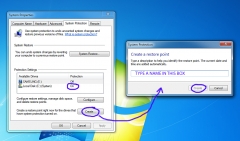
5. Look to see that the C:\ drive is set to ON (it usually is) and any other drives (if you have any) are shown as being OFF
6. Simply click the 'Create' button at the bottom and it should open up the small dialogue box as shown to the right.
7. Type a name in the box that tells you which 'Restore Point' it is, use something like 'Restore to April 2016'
8. Now click the Create button to finish, that's it simples!
You will now have created a point on your PC at a time when everything is working to your satisfaction, should you then have a problem some time later you can go back to this point in time. Of course any changes that you have made after this particular restore point will be lost should you go back to it, so the best method is that before making any changes such as adding new devices or drivers or programs to your PC is that you make another 'restore point' and call it something else, you can have many restore points on your PC.
Most Windows Operating Systems can do the following thing, but what I describe here is relevant to Windows 7 that many of you use. When problems occur it can be very frustrating in trying to figure out what is actually wrong. Quite often it happens after we have either loaded on a new program, added a new device, or quite often after some Windows update has been installed. When this happens it is often the easiest remedy to 'Restore' the computer to a time before any of these changes took place and in effect "go back in time". This is not difficult to do and it is advisable to create a 'Restore Point' in Windows, then in the event of a problem occurring you just reset your PC to that point in time when everything was working OK, its as easy as that.
To create a 'Restore Point' do the following:
1. Click on your 'Start' button (bottom left)
2. In the 'Search Programs' box (just above) type in Create Restore Point
3. From the menu that appears select "Create a restore point"
4. You should see a menu as in the picture below this.
5. Look to see that the C:\ drive is set to ON (it usually is) and any other drives (if you have any) are shown as being OFF
6. Simply click the 'Create' button at the bottom and it should open up the small dialogue box as shown to the right.
7. Type a name in the box that tells you which 'Restore Point' it is, use something like 'Restore to April 2016'
8. Now click the Create button to finish, that's it simples!
You will now have created a point on your PC at a time when everything is working to your satisfaction, should you then have a problem some time later you can go back to this point in time. Of course any changes that you have made after this particular restore point will be lost should you go back to it, so the best method is that before making any changes such as adding new devices or drivers or programs to your PC is that you make another 'restore point' and call it something else, you can have many restore points on your PC.